
Starfish connects students to the information, resources, and services they need to succeed through a personalized success network. It houses an early alert feature that allows faculty to provide students with feedback early in the semester, allowing them ample time to get connected with the support they need.
Starfish helps you ...
- Set up your office hours and schedule appointments with students
- Raise alerts (flags, kudos, or referrals) for students
- Find a “one-stop-shop” organized list of students you are connected to (advisee/advisor relationship, professor/student relationship, etc.)
- Access each students academic records (progress reports, unofficial New Paltz transcripts, enrolled courses, etc.)
- Send messages to students you are connected to
- Connect with other internal staff members for assistance supporting your students
- ... and more!
Getting started is easy!
Log-in through my.newpaltz.edu or use this direct link.
For an introduction to Starfish, download the Starfish User Guide for comprehensive written step by step instructions on set-up and basic how-to guides (as well as more advanced functions of Starfish), or watch these video guides below.
Setting Up Your Profile and Calendar (START HERE FIRST)
- STEP 1: Updating your Profile (video)
- STEP 2: Appointment Preferences and Calendar Set-up (video)
- STEP 3: Updating your Office Hours (video)
- STEP 4: Email Notifications for Appointments & Tracking (video)
Once your profile and calendar is set up
Starfish Q&A
Set up
For directions, you can watch this video, or download this Profile Set up guide.
TIPS:
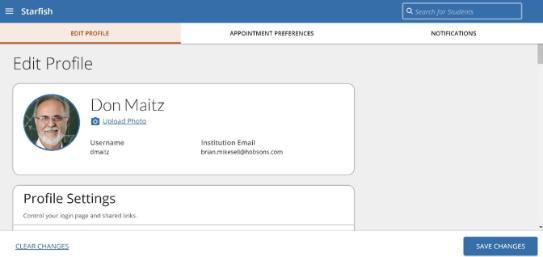
It is recommended that you upload a profile picture on Starfish so students can see your face in their Success Network in Starfish. Your ID photo may be pre-loaded, but you can update the photo to your preference.
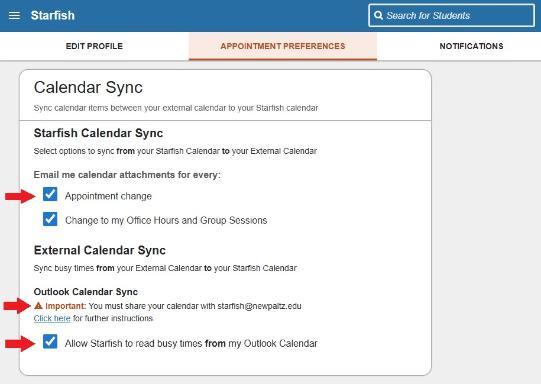
If you will be using the Appointment scheduling feature of Starfish, be sure to read through and complete the Calendar Sync section. You must fully complete the "Outlook Calendar Sync" section in order for Starfish to read your Outlook Calendar busy times. This will prevent you from getting double-booked if you have a meeting come up unexpectedly during a scheduled Office Hour block.
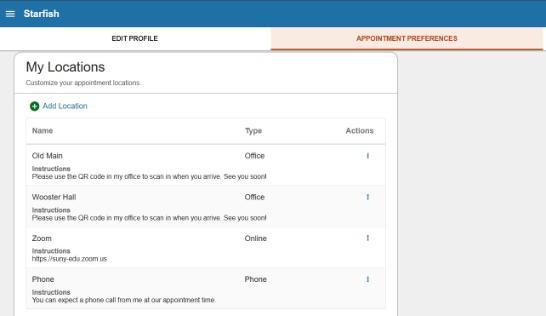
When setting up your profile, be sure to include all appointment modalities you'll be offering, and any instructions you have for the student when they select the specific modality. This is a bank of all possible locations and modalities. You can then select which ones you would like to use for any given office hour block. You can add to this list at any time!
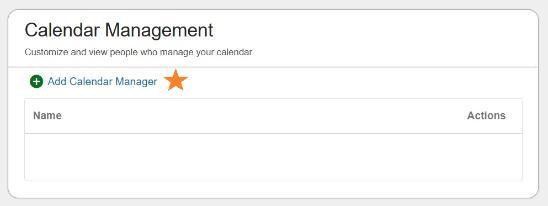
If you are interested in assigning any Starfish user as your Calendar Manager (the ability to schedule your appointment blocks and/or book appointments on your behalf), select the user in the Calendar Management section. Typically this role is given to your department's Administrative Assistant, but is not limited to this role.
Office Hours are Starfish's appointment scheduling feature. This feature allows students to easily schedule appointments with you based on when you are available. Starfish can be set up to connect to your Office 365 Outlook Calendar to provide real-time availability. Office Hours can be reserved for different populations of students that you are Connected to (class roster, advisees, etc). When students schedule meetings with you in Starfish, you can then put in notes post-meeting to document what was discussed.
For step-by-step instructions, view this Calendar Set up guide OR watch this video (skip to the 00:21 time mark).
Don't forget! to update your Office 365 Outlook Calendar permissions to allow Starfish Calendar (starfish@newpaltz.edu) to view your busy times. If a meeting unexpectedly comes up during a time you have scheduled Starfish Office Hours, this will prevent students from scheduling an appointment with you during a time you are busy. Students cannot see the details of your Outlook Calendar in Starfish. See "Calendar Set up" guide for detailed instructions.
Did you know? You can set up your appointment availability to allow different populations of students to meet with you. If you are a faculty advisor and also teach courses, we recommend using different office hour blocks to provide appointment availability depending on the students connection to you. Use "Faculty Office Hours" for appointments with students in your class(es), and "Meeting with Faculty Advisor" for your advisees.
Pro tip: When setting up your appointment availability, we recommend selecting an end date of the end of the semester. You can then create new appointment blocks each semester to match your availability.
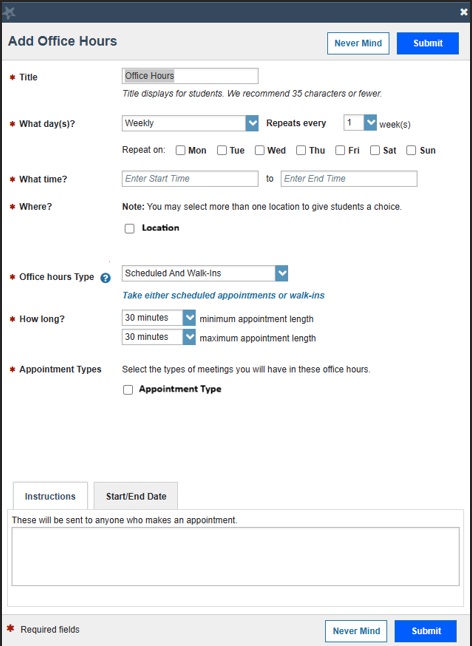
The Appointment Types are connected directly to specific student populations you are connected to through "Roles". Selecting a specific Appointment Type will allow students that are connected to you in specific ways to schedule meetings with you.
Common appointment types and what they mean:
Meeting with Faculty Advisor: This is for faculty who have an advising caseload. This allows students who are assigned to you in any advising capacity to meet with you (Major Advisor, Minor Advisor, Concentration Advisor). Meeting with Education Advisor is reserved for faculty within the School of Education, to allow them to meet with their Education advisees. These appointment types can be posted as scheduled only (must be scheduled in advance) or drop-in, or both. We recommend these appointment types are set as "scheduled only".
Faculty Office Hours: This is for teaching faculty. This allows students enrolled in your course(s) to schedule meetings with you. This appointment type can be posted as scheduled only (must be scheduled in advance) or drop-in, or both. Most faculty prefer to post this type of office hour as drop-in only.
Informational Meeting: This is traditionally used by teaching faculty or department chairs to allow ANY undergraduate student to meet with them. This appointment type can be posted as scheduled only (must be scheduled in advance) or drop-in, or both.
There are a variety of other appointment types used by professional advising units, campus services, or campus support programs. These are created and customized based on the units needs and the student populations they serve. These can only be selected by staff affiliated with those units.
PRO TIP: When creating your "office hours", it can be helpful to rename the Title to indicate what population has access to schedule with you during that block. For example "Advising appointments" for any time reserved just for your advisees.
Don't forget! to update your Office 365 Outlook Calendar permissions to allow Starfish Calendar (starfish@newpaltz.edu) to view your busy times. If a meeting unexpectedly comes up during a time you have scheduled Starfish Office Hours, this will prevent students from scheduling an appointment with you during a time you are busy. Students cannot see the details of your Outlook Calendar in Starfish. See "Calendar Set up" guide for detailed instructions.
Many units have administrative assistants who manage their calendars. This can also be done in Starfish, to designate one or more individuals to either book meetings for you or create scheduling availability.
To designate a user your Calendar Manager, click on the hamburger Menu in the upper left corner, click Your Name, click Appointment Preferences, and then scroll down to Calendar Management. Click + Add Calendar Manager to select your desired user and click ADD CALENDAR MANAGER.
Functionality
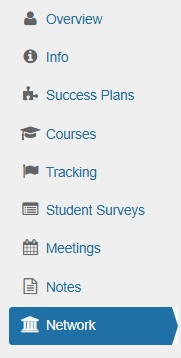
What you are able to view in a student's individual Starfish profile will vary based on how you are connected to them. Some roles will have a limited access to view detailed student information. Professors can see a limited view of their students profile, whereas advisors or campus support services may have a more detailed view of a students profile. This is determined by the relevance of the information to the individual and role they have with each student. A student's Starfish profile is a one-stop-shop for general student information.
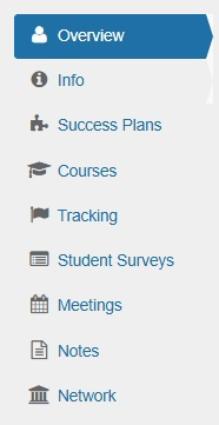 |
Overview: General information about the student, including Major, Class Standing, Registration Time assignment for upcoming semesters, Progress Report link, Unofficial Transcript link, etc. |
| Info: Detailed Admission, Demographic, and Program information about the student. | |
| Success Plans: If the student has any Success Plans. The student's professional advising unit may use Success Plans as appropriate for the student. Success Plans are checklists or tasks students are recommended to complete to achieve success. | |
| Courses: Listing of courses that the student is registered for. Includes enrollment status, course title/course number, Instructor name, semester enrolled, credit hours. | |
| Tracking: Tracking items that have been raised for the student. Tracking items include Flags, Kudos, To-Dos, Referrals. Any outreach completed by the student's professional advisor may be noted as well. | |
| Student Surveys: Lists all student surveys that were sent to the student and the responses to the survey. | |
| Meetings: When faculty and staff use Starfish calendar for scheduling meetings, the meetings that have been scheduled past, present, future will show here. Any post-meeting notes can and may be logged under each meeting. | |
| Notes: A catalog of all notes made for this student. Includes meeting notes, messages sent to student via Starfish platform, tracking items and tracking item comments. | |
| Network: Lists all faculty and staff connected to the student. Includes professors, advisors, department coordinators, complex directors. |
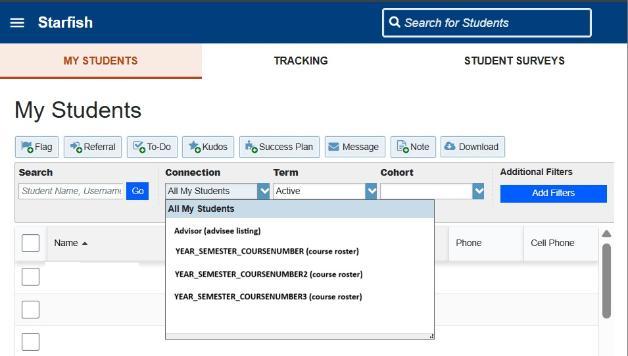
Yes! Starfish connects you to students in the same way you are connected to them in our New Paltz systems. Whether you are an instructor, advisor, or have other roles on campus that connect you to broader groups of students, you can see these lists of students in your Starfish under Menu -> Students/My Students -> Connection. Select the Connection drop-down to see each group of students. You can access these students profiles by clicking on their name.
Pro tip! Selecting "All My Students" under Connection will display a cumulation of all students in any Connection you have. Be sure to select the specific Connection you wish to see displayed.
Yes! Starfish connects you to students in the same way you are connected to them in our New Paltz systems. Whether you are an instructor, advisor, or have other roles on campus that connect you to broader groups of students, you can see these lists of students in your Starfish under Menu -> Students/My Students -> Connection. Select the Connection drop-down to see each group of students. You can access these students profiles by clicking on their name.
Pro tip! Selecting "All My Students" under Connection will display a cumulation of all students in any Connection you have. Be sure to select the specific Connection you wish to see displayed.
In each student's individual profile, you can find a list of all the faculty and staff on campus that are connected to a student. Some connections are 1:1 (Advisor, Instructor, etc.), others can be more broad (Residence Hall Director, Campus Service, Department, etc). Click Network in the student's individual profile to see their advisors and instructors.
You can make changes to your appointment availability for the semester once you've created it. You can cancel and create new office hour blocks if the original days/times you've selected no longer work for you. Or, if you just need to make minor changes to your appointment blocks, such as adding a new office location or a new modality, you can make simple edits to your existing appointment blocks. You can now make single-instance edits to recurring appointment blocks.
For directions on how to update pre-existing office hours, download this Updating pre-existing office hours guide.
For directions on how to update office hour locations, download this Updating office hours guide.
There are multiple methods in which you can document your interactions with students, one of them being documenting your notes after an advising meeting. Whether you've met with your student for a pre-scheduled meeting, a drop-in, or a quick conversation, the instructions in this Meeting Notes guide walk through how to input your meeting notes.
You can send messages to your students via Starfish (individually or in bulk) that go directly to their SUNY New Paltz email. If students send a reply to the message, it will go directly to your SUNY New Paltz email.
For directions on how you can message your students using Starfish, download this Messaging guide.
For directions on how to record attendance, download this Tracking Attendance guide.
Tracking Items
Flags allow faculty to alert a student and their primary role advisor regarding any concern about the student’s classroom performance. The flag acts as a catalyst for (1) students to reach out to the instructor who raised the flag, and (2) for advisors to get in touch with the student, make a plan on how to resolve the concern, and put the student on the path to a successful semester.
The Kudos feature allows faculty to recognize students who are on the right track, who have shown improvement, or deserve acknowledgement. Preliminary research shows kudos to be particularly impactful on students later in the semester (around week nine).
Referrals allow faculty to notify a student support service directly that their service is recommended for a student. When you raise a referral, the office connected to the referral will reach out to the student to provide information on their services and how to connect further.
For a detailed list of all tracking items available to faculty/staff along with the corresponding automated messaging, click here.
For directions on how to raise an alert (flag, kudo, referral), download our Raising Tracking Items guide.
For a detailed list of all tracking items available to faculty/staff along with the corresponding automated messaging, click here.
When you raise a flag, your student is notified and encouraged to connect with you to discuss the academic concerns you raised. Additionally, your student's professional advisor may connect with them to encourage them to take action and even provide referrals to appropriate academic support resources on campus.
Notes from advisors outreach to students in relation to the flag(s) you raised can be found in the students Starfish profile. View this Accessing Flag Comments guide for instructions on how to access flag comments and/or close-the-loop comments made by the advisor.
To review how the Office of Academic Advising manages flags that are raised, Click Here.
Did you know? You have the ability to add notes to the flags you raise in Starfish. If your student has connected with you and you two have come up with a plan for success, you can go into Starfish and close the flag if no further outreach is needed.
Progress surveys are campus-wide initiatives that allow for the quick collection of faculty feedback about student performance. Progress survey reporting items inform students and their advisor about academic concerns at specific times of the semester.
Faculty will receive instructions when the survey opens, and receive a reminder email prior to the due date if their progress surveys have not been completed.
- For directions on how to complete a Progress Survey, download this Completing Progress Surveys guide. This includes a walkthrough on completing a BLANK survey (if you are not the primary instructor for a course).
New Paltz conducts progress surveys each semester:
Enrollment Census/Early Alert Progress Survey
We have combined our Enrollment Census survey and our Early Alert survey to provide a one-stop-shop for faculty to be able to report for census, as well as provide feedback to students and their support team early on in the semester. This allows students room to grow, and get connected with appropriate resources on campus to ensure their success in the course throughout the rest of the semester. This typically takes place within the first 3-4 weeks of the semester.
NEW Midsemester Evaluation Survey - beginning Fall 2026 semester
Previously completed in my.newpaltz.edu, we are bringing the Midsemester Evaluation back into Starfish starting in the Fall 2026 semester. More information to come!
Recognition and Gratitude Survey
This is an End-of-Semester survey to recognize and congratulate students on their hard work throughout the semester. This survey is meant to recognize stand-out performance and provide encouragement for further study. This typically takes place in the last 1-2 weeks of the semester.
If you have a role on campus in which you will "manage" various tracking items, download this Managing Tracking Items guide.
You can also watch our Faculty and Staff Demo series on closing the loop and clearing flags.
Questions?
If you have any questions regarding Starfish, contact:
 |
Taylor Boggio Starfish App Admin & Academic Advisor Office of Academic Advising NPStarfish@newpaltz.edu | boggiot@newpaltz.edu x3708 |
|---|